
Appearance
Automation and chatbot flows
Desorix can answer customers by itself:
- Automation rules decide what happens when a message arrives. A rule either replies with a message or starts a chatbot flow.
- Chatbot flows are automated conversations. You draw them on a canvas: messages, questions with buttons or lists, conditions, tags, assignment, a handoff to your team, webhook calls and waits.
Owners and admins build flows and rules. Agents see what the bot is doing in the inbox, and can start or stop a flow there.
Not Meta's "WhatsApp Flows"
Meta sells a different product called WhatsApp Flows: forms that open inside WhatsApp. Desorix's chatbot flows are ordinary messages and buttons, so they work on every number without any extra Meta setup.
Quick start
- Open Chatbot flows → New flow, name it
Main menu, keep Example menu selected and click Create and open. - Click Test flow (top right). A chat preview opens. Tap Order status, type an order number and watch the flow reply. Nothing is sent to WhatsApp.
- Click Publish, then tick Active.
- Open Automation → New rule. Name it
Menu, choose Keyword, and entermenu. Under Then, choose Start a chatbot flow →Main menu. Save. - From your phone, send
menuto your WhatsApp number. The menu arrives with three buttons.
What happens when a message arrives
For each new customer message, Desorix checks these in order. Only one rule fires per message.
- STOP / START keywords (see Contacts). An opt-out also stops any flow running for that customer. Neither keyword triggers a rule.
- Paused conversations. After an agent replies, or after a flow hands off, rules and flows stay quiet in that conversation for the pause time (24 hours by default). Closing the conversation, or Hand back to the bot in the inbox, ends the pause early.
- A flow waiting for an answer gets the message as the answer. The exception is a keyword rule whose match is The whole message is the keyword: it takes over. That way
menuoragentalways works, even in the middle of a flow. - Keyword rules, then welcome, then away. Higher priority wins within a type. While a flow is only waiting on a Wait step, only keyword rules can interrupt it.
Messages that reach Desorix more than an hour late (for example after a long outage) never trigger the bot. That way customers don't get a burst of old answers.
Automation rules
Automation in the sidebar lists the rules. Each rule has these settings:
| Setting | What it does |
|---|---|
| When | Keyword: the message is, contains, or starts with one of your words. Case and punctuation are ignored. Welcome: the first message from a contact on that number, and optionally again after N days of silence. Away: a message arrives outside business hours or while the away switch is on. |
| Then | Start a chatbot flow (it must be published and switched on) or Reply with a message. The reply can include {{contact.name}} and other contact placeholders, and optionally a file by public HTTPS link. |
| Numbers | Tick none to use the rule on every number, including numbers added later. |
| Cooldown | The rule fires at most once in this time per conversation. Away rules default to 12 hours, so a customer who sends five messages at night gets one away message. |
| Priority | Decides between rules of the same type. |
A rule whose flow is unpublished, switched off or deleted is skipped, and the next matching rule is used instead. The rules list warns about this.
Business hours, away and the agent pause
On the same page, under Business hours and away:
- Business hours: opening times per day (up to three periods, for example a lunch break) and closed dates such as holidays. They use the workspace time zone (Settings → Workspaces → your workspace → Time zone; the page warns while it is still UTC). Without business hours the business counts as always open.
- We're away now: a manual switch, optionally with an end time. While it's on, the away rule answers every message.
- Keep the bot quiet for: how long an agent's reply (or a handoff) pauses automation in that conversation.
The Open now / Closed now badge shows what an away rule would see at this moment.
The flow builder
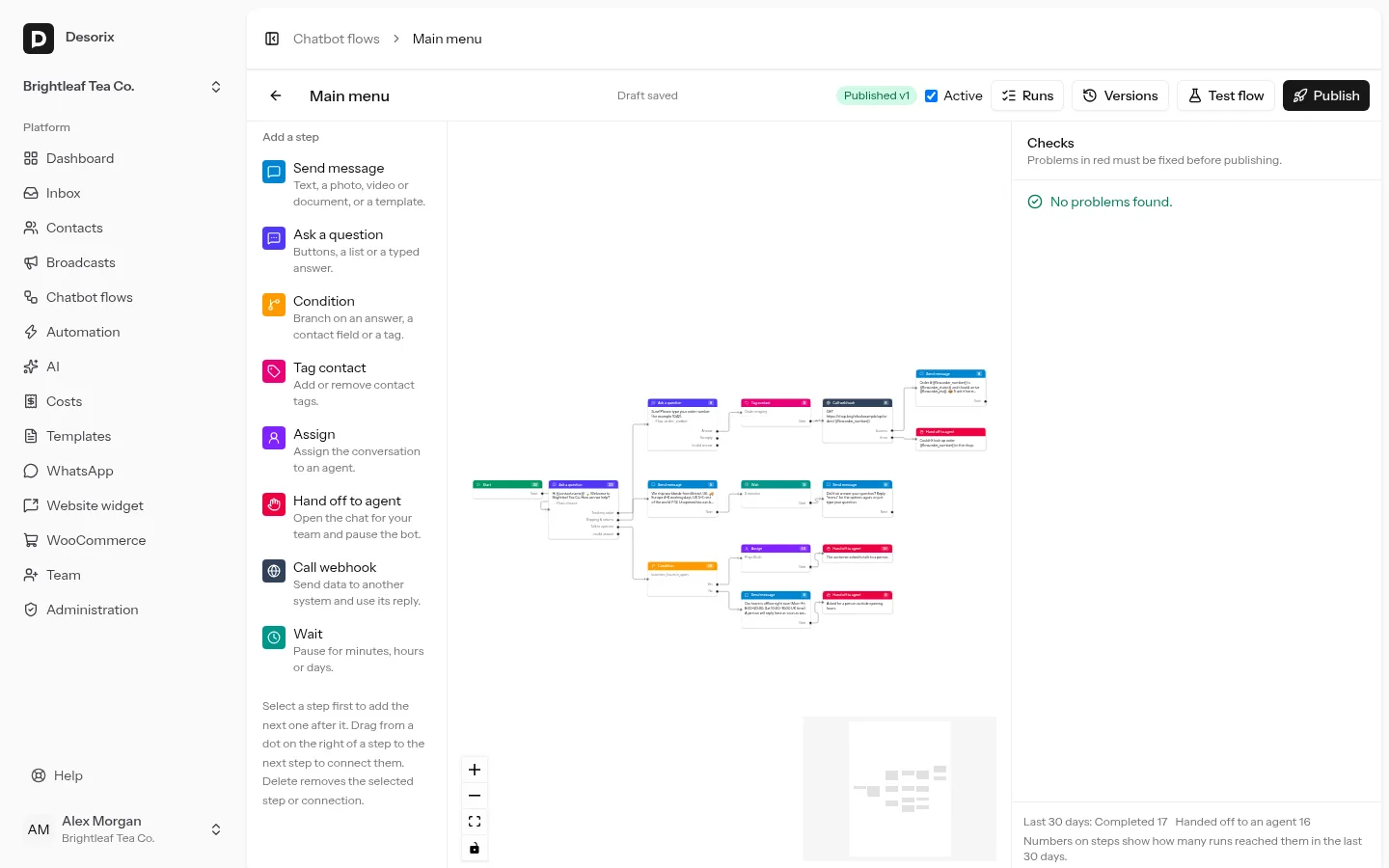
The builder has three parts:
- Add a step on the left. Select a step on the canvas first, and the new step is added after it and connected to it.
- The canvas in the middle. Drag steps to arrange them. To connect two steps, drag from a dot on the right edge of one step (each dot is one possible outcome) to the next step. Each outcome has one connection; drawing a new one replaces the old. Select a step or a connection and press Delete to remove it.
- The side panel on the right. Click a step to edit it. With nothing selected, it shows Checks, the problems found in the flow.
Drafts save automatically about a second after each change (Draft saved in the toolbar, or press Ctrl/⌘+S). Customers never see the draft; they only see the published version.
Steps
| Step | Settings | Outcomes |
|---|---|---|
| Start | Where every run begins. | Next |
| Send message | Text (up to 4,096 characters), a photo, video or document by public HTTPS link (with a caption), or an approved template with its variables. | Next |
| Ask a question | The question, then either reply buttons (up to 3, 20 characters each), a list (up to 10 options, 24 characters plus a 72-character description, and the list button text), or a typed answer (any text, a number, or an email address). Also: the variable to save the answer in, the number of retries, and a no-reply time. | One per option (or Answer), No reply (when a no-reply time is set) and Invalid answer |
| Condition | One or more checks, all or any: a flow variable, a contact field, a tag, the opt-in status, or whether you're open now. Numbers compare as numbers. | Yes / No |
| Tag contact | Add or remove contact tags (the same tags segments and broadcasts use). | Next |
| Assign | Assign the conversation to an agent, or unassign it. Agents limited to other numbers are skipped. | Next |
| Hand off to agent | An optional internal note. The conversation moves to Open in the inbox and the bot pauses. | (ends the flow) |
| Call webhook | Method, URL, headers, JSON body, and values to save from the reply (see below). | Success / Error |
| Wait | Minutes, hours or days (up to 30 days). | Next |
A run ends when it reaches an outcome with nothing connected. Leaving an option unconnected is sometimes intended, so Checks only warns about it.
How questions handle answers
- Customers can tap a button or list row, or type the option's text or its number (
2picks the second option). - A wrong answer gets your message for an invalid answer (or a default), and the question is asked again, up to the number of retries. After the last retry the run follows Invalid answer. If nothing is connected there, it ends.
- With a no-reply time set, silence follows No reply. Without one, the question waits up to 7 days and then the run expires.
Variables and placeholders
Text fields accept placeholders, which you can add from Insert a variable…:
{{contact.name}},{{contact.phone}},{{contact.email}},{{contact.country}}, and{{contact.<custom field key>}}for your custom fields.{{flow.<name>}}for answers saved by questions and values saved by webhook steps, for example{{flow.order_number}}.
An empty or unknown placeholder becomes empty text.
Test flow
Test flow opens a WhatsApp-style chat preview that runs the flow with the same engine as the real bot. It never sends anything to WhatsApp and never changes contacts or conversations:
- Draft tests exactly what is on the canvas, including unsaved changes. Published tests the live version.
- Test as: you (sample data), or one of your contacts. The contact's name, fields and tags are only read.
- Buttons and lists are clickable, and you can type answers. Skip the wait jumps over a Wait step. Simulate no reply triggers a question's no-reply outcome.
- Tag, assign and handoff steps are described in yellow notes instead of being carried out. Webhook steps are not called unless you tick Call webhooks; otherwise the test continues on Success with no data.
- The canvas highlights the steps the test passed through, with the current step in green. Variables at the bottom shows what was saved.
Checks, publishing and versions
- Checks lists problems. Red ones (for example an empty message, too many buttons, a template that is no longer approved) block Publish. Yellow warnings don't: unreachable steps, unconnected options, and a text message after a wait of more than 23 hours.
- Publish freezes the draft as a new version (v1, v2, …). People already in the flow finish the version they started, so editing a live flow never breaks a conversation in progress.
- Active decides whether rules may start the flow. Agents can start any published flow from the inbox.
- Versions copies an older version back into the draft. It goes live only when you publish again.
- Runs lists every run: the contact, the version, its status and why it ended, the saved answers, and when it started and ended. The number on each step is how many runs reached it in the last 30 days.
The 24-hour window, templates and costs
WhatsApp only allows free-form messages (text, media, buttons, lists) within 24 hours of the customer's last message. A customer writing to you opens that window, so flows started by a rule can always answer. Things change after a long Wait:
- A Send message step with Approved template can be sent at any time. Use it after waits of more than 23 hours; Checks warns about this.
- A non-template step after the window has closed stops the run as failed (24-hour window closed). The run doesn't retry.
Every message the bot sends is recorded like any other message: category (service for text, buttons and lists, and the template's category for templates), destination country and estimated cost. It is labelled Chatbot in the inbox. Costs are reported per flow and per rule in the cost dashboard (Phase 6).
The webhook step
The webhook step sends data to another system (your shop, a CRM, a spreadsheet service) and can use its reply.
URL:
http://orhttps://. Placeholders in the URL are URL-encoded, for examplehttps://shop.example.com/api/orders/{{flow.order_number}}.Body (all methods except GET): your JSON, with placeholders escaped as JSON strings. If you leave it empty, Desorix sends:
json{ "contact": { "name": "Amina Otieno", "phone": "+254712345678", "email": null, "country": "KE", "fields": { "orders": 12 } }, "variables": { "order_number": "1042" } }Save from the response: a dot path into the JSON reply (
order.status,items.0.name) and the flow variable to save it in.Success: a 2xx reply within 10 seconds. Error: anything else, including timeouts. Redirects are not followed.
Security:
- Only public internet addresses can be called.
localhost, private networks (10.x, 192.168.x, …) and link-local addresses are refused, so a flow can't reach services on your server. - If your flows must call a service on your own private network, set
DESORIX_ALLOW_PRIVATE_WEBHOOKS=truein.env. - Tick Secret for keys and tokens (it's on for new headers). A secret value is stored encrypted, shown only as "Saved", and kept when you leave the field empty. To change it, type the new value. Placeholders such as
{{contact.name}}aren't filled into secret values. Headers that aren't secret are stored as plain text. - Use an API key that only allows what the step needs.
- Only public internet addresses can be called.
What needs to be running
Replies to customers are handled immediately, as part of processing the incoming WhatsApp message. Wait steps, no-reply times and question expiry are handled by php artisan desorix:run-flows. The scheduler runs it every minute, so the cron job from the installation guide must be running. Step logs older than 30 days are deleted daily (desorix:prune-flow-logs); the runs themselves are kept.
Privacy
Answers that customers give in a flow are stored with the run. Delete personal data (GDPR) on a contact deletes their runs and step logs along with their other personal data.