
Appearance
User guide
For workspace owners, admins and agents. Agents also have the same material inside the app under Help.
Signing up and signing in
- Register with your name, email and password, then confirm your email address from the link we send you.
- If public registration is closed, ask a workspace admin to invite you and use the link in the invitation email.
- Two-factor authentication and passkeys can be turned on under Settings → Security.
Workspaces
- Everything (WhatsApp numbers, conversations, contacts, costs) belongs to a workspace.
- The current workspace is shown at the top of the sidebar. Click it to switch workspaces, create a new one, or open Members and settings.
- Time zone (Settings → Workspaces → your workspace): every date and time in the workspace is shown in it, and business hours, away times and broadcast schedules use it. A new workspace starts with your computer's zone; check it before setting business hours.
- The workspace slug is part of the address (
/acme/dashboard), so bookmarks and browser tabs stay in the right workspace.
Inviting your team
Owners and admins: click Team in the sidebar (or Settings → Workspaces → (your workspace), or the workspace menu → Members and settings):
- Invite member, enter their email and choose a role (Admin, Agent or Viewer).
- They receive an email. Once they log in or register with that email, the invitation appears on their dashboard to accept.
- Pending invitations can be cancelled from the same page. Members can have their role changed or be removed.
See Roles for what each role can do.
Connecting WhatsApp (owners and admins)
WhatsApp → Connect WhatsApp starts a four-step wizard:
- Meta details: your WhatsApp Business Account ID, App ID, App Secret and a permanent access token.
- Webhook: copy the Callback URL and Verify token into your Meta app. The page turns Verified by itself when Meta checks it.
- Test connection: Desorix checks everything with Meta and links to the fix for anything that fails.
- Phone numbers: choose which numbers this workspace uses.
The WhatsApp setup guide explains every Meta screen along the way, including how to publish your Meta app (required for real messages to arrive).
Each number has its own page with a Send a test message form and a Recent messages table showing delivery status, the Meta pricing category, the destination market and the estimated and final cost of each message.
Dashboard
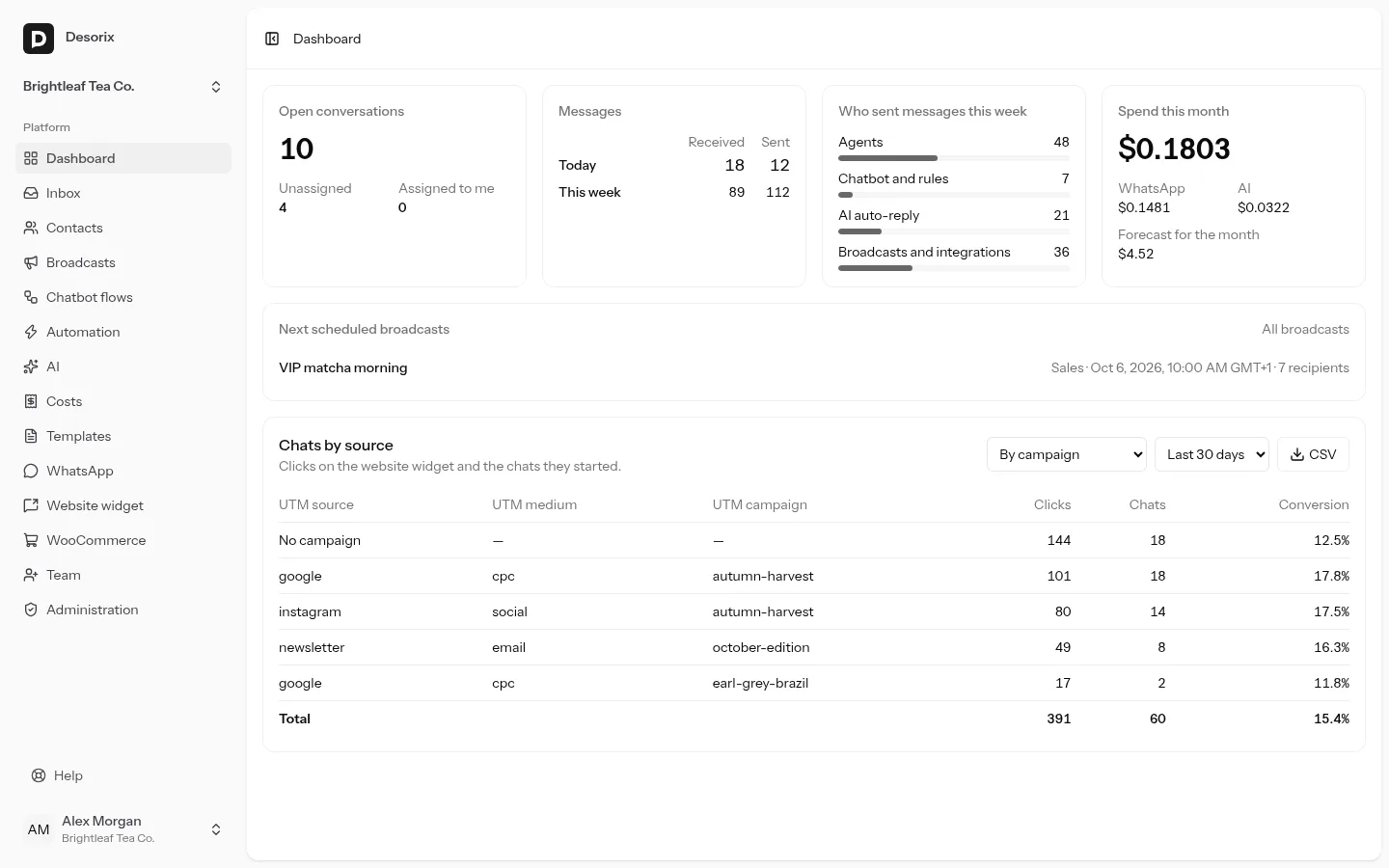
The first page after signing in. Each member sees only the tiles their role allows, and inbox figures only count the numbers they can use.
- Open conversations: all open conversations, the unassigned ones and yours. Each number links to the inbox, already filtered.
- Messages: received and sent, today and this week (from Monday), in the workspace time zone.
- Who sent messages this week: agents, the chatbot and automation rules, AI auto-reply, and broadcasts and integrations.
- Spend this month (owners, admins and viewers): WhatsApp and AI so far and the forecast for the month, with the same figures and currency rules as the Costs page.
- Next scheduled broadcasts (members who can see broadcasts): name, number, time and recipients.
- Chats by source (owners, admins and viewers): clicks on the website widget, the chats they started and the conversion rate. Group it by campaign (UTM source / medium / campaign), by page or by referring website, for the last 7, 30 or 90 days. CSV downloads every row.
Inbox
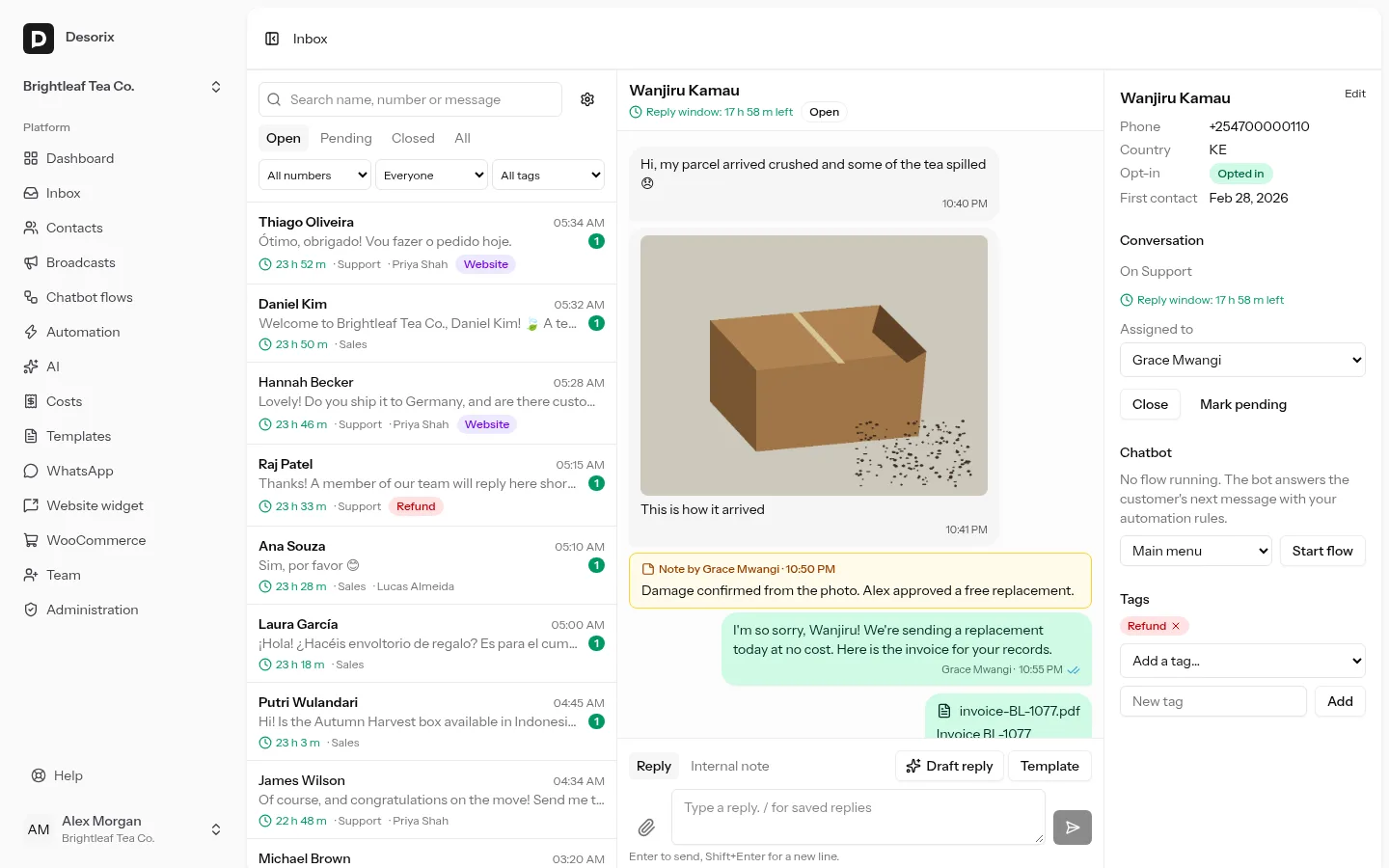
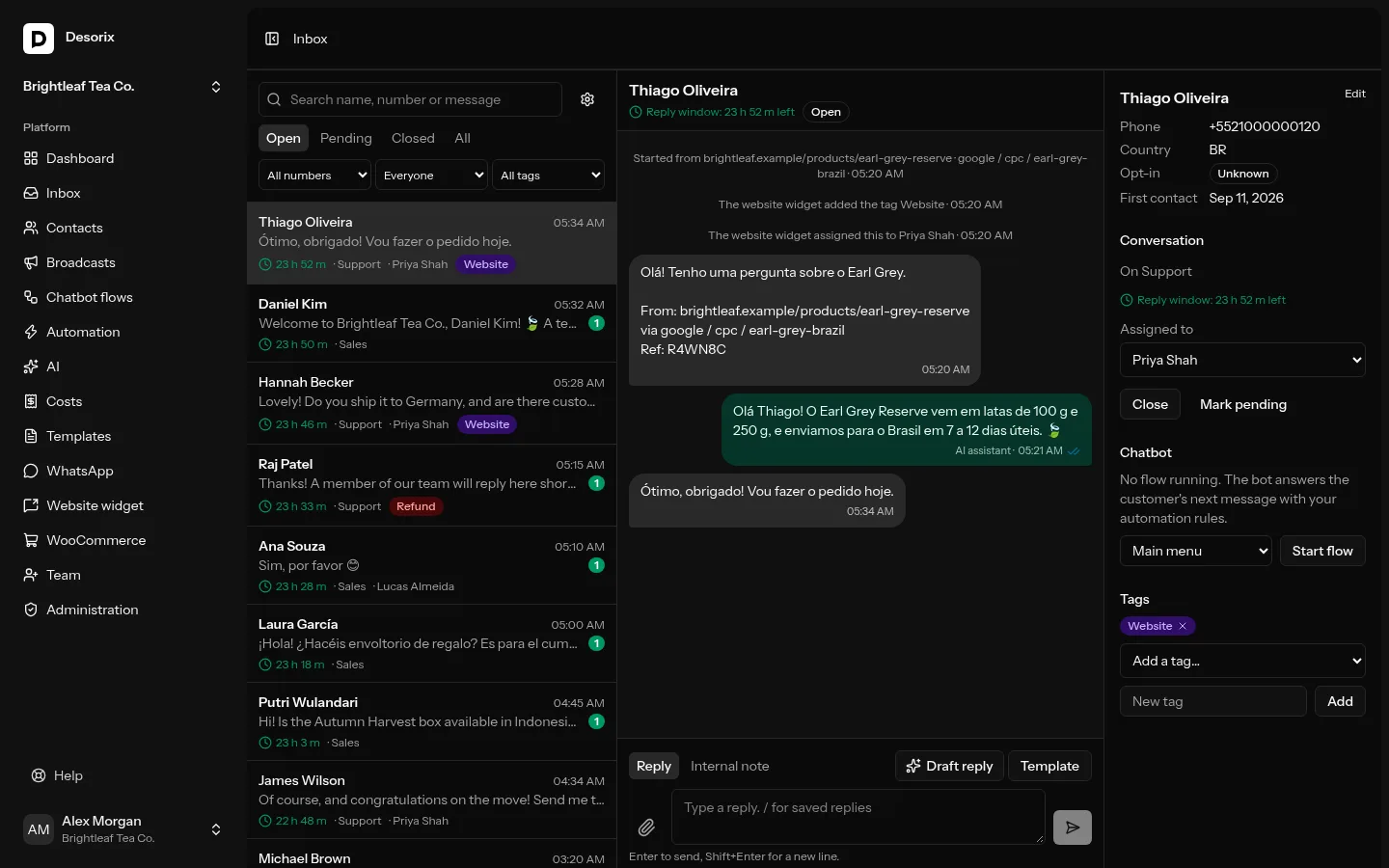
Inbox in the sidebar is where your team answers customers. The in-app Help → Using the inbox article explains it step by step. In short:
- Conversations are listed newest first, filtered by status (open, pending, closed), number, assignment and tag, with search across names, numbers and message text.
- Replying: free-form text, photos and files work for 24 hours after the customer's last message; a timer shows how long is left. After that, pick an approved template. Type
/to insert a saved reply. - Internal notes are visible only to your team.
- Assign conversations, close them (they reopen when the customer writes), mark them pending, and add tags.
- Ticks show sent, delivered and read. Opening a conversation sends the customer blue ticks unless an admin turned that off.
Inbox settings (owners and admins)
The gear icon in the inbox opens Inbox settings:
- Read receipts: whether opening a conversation shows the customer blue ticks.
- Number access: limit an agent or viewer to certain numbers. By default everyone sees every number.
- Saved replies: shortcuts agents insert with
/. They can use{{contact.name}}and{{agent.name}}. - Tags: rename, recolour or delete them.
Contacts
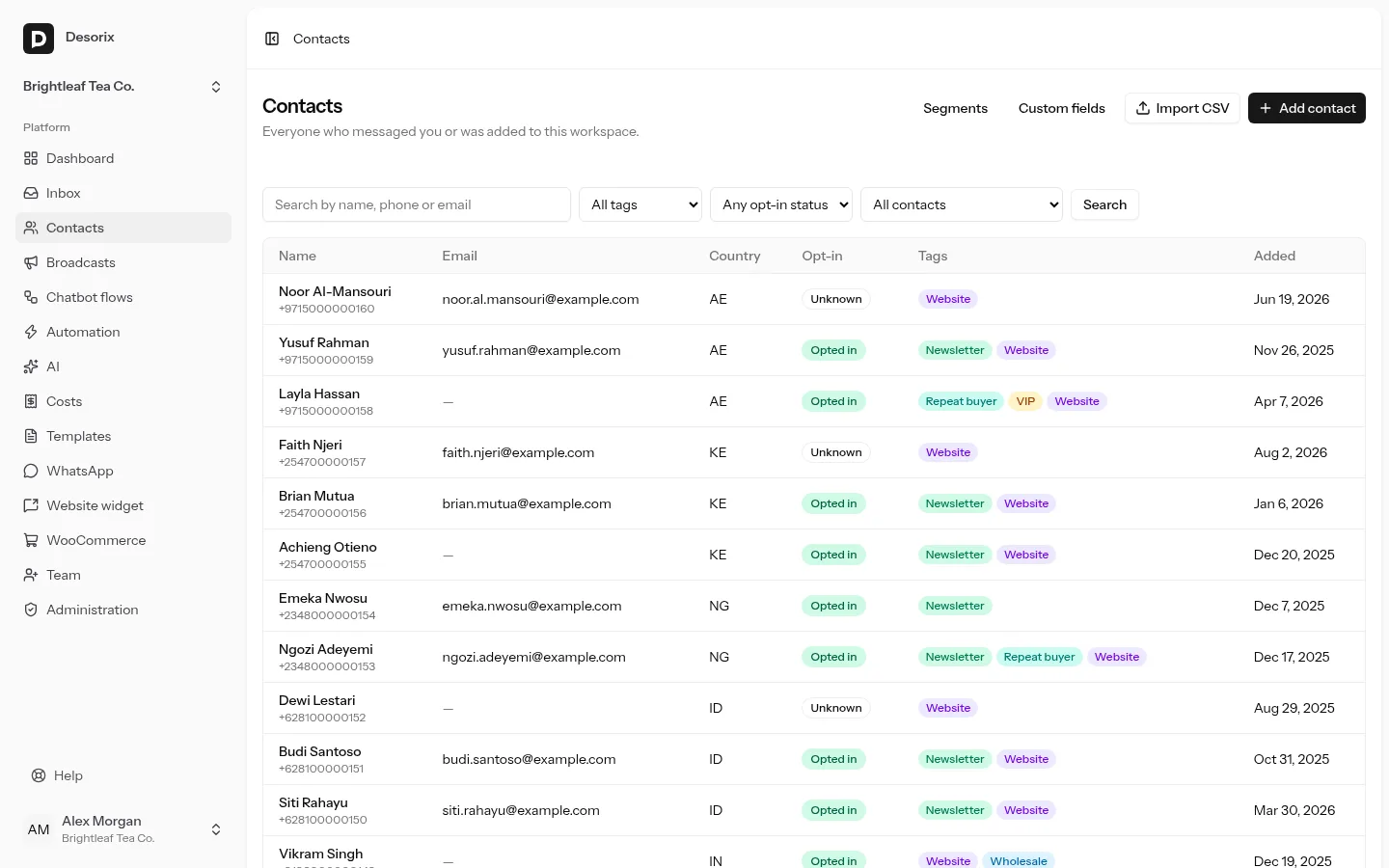
Contacts lists everyone who has messaged one of your numbers or was imported.
- Add contact: phone number (with country code, or pick the country), name, email and opt-in status.
- Contact page: edit the name, email, custom fields and tags; see their conversations; change opt-in with a reason; view the consent history.
- Delete personal data (GDPR) (owners and admins): removes the name, number, email, custom fields, message texts, attachments and notes for that person. Message costs are kept, without any personal data, so your spending reports stay correct.
- Opt-out words: a reply of just STOP or UNSUBSCRIBE opts the person out; START opts them back in.
Custom fields (owners and admins)
Contacts → Custom fields defines extra fields such as City, Customer number or Renewal date. Each has a type (text, number, date, yes/no, or a choice list). They appear on every contact, can be imported from CSV, used in segments, and filled into broadcast variables. A field's key can't change after it's created.
Importing a CSV
Contacts → Import CSV:
- Upload a
.csvfile (up to 10 MB). The first row must be the column names. Excel: File → Save as → CSV UTF-8. - Match the columns: Desorix guesses (phone, name, email, tags, opt-in, custom fields). Exactly one column must be the phone number.
- Options:
- Default opt-in status. Choosing Opted in asks you to confirm these people agreed to hear from you.
- Update existing contacts.
- Default country, for numbers written without
+. - A tag to add to everyone in the file.
- Start. The import runs in the background: about 500 rows per step, every minute on shared hosting. You can leave the page. Rows that fail (for example an invalid number) are listed, and you can download them as a CSV to fix and re-import.
Imports never overwrite existing data with empty cells. They never opt someone back in who opted out on WhatsApp.
Segments
Contacts → Segments saves a filter you can reuse, for example "Opted-in customers in Kenya who messaged us in the last 30 days". Combine conditions with all (every condition must match) or any:
- Opt-in status, country, tag (has / doesn't have), date added
- Messaged us in (or not in) the last N days, talked to a given number
- Name, email and any custom field (equals, contains, greater than, before/after, is empty…)
The preview shows how many contacts match right now. A segment is re-evaluated whenever it's used, so new contacts are included automatically.
Templates (owners and admins)
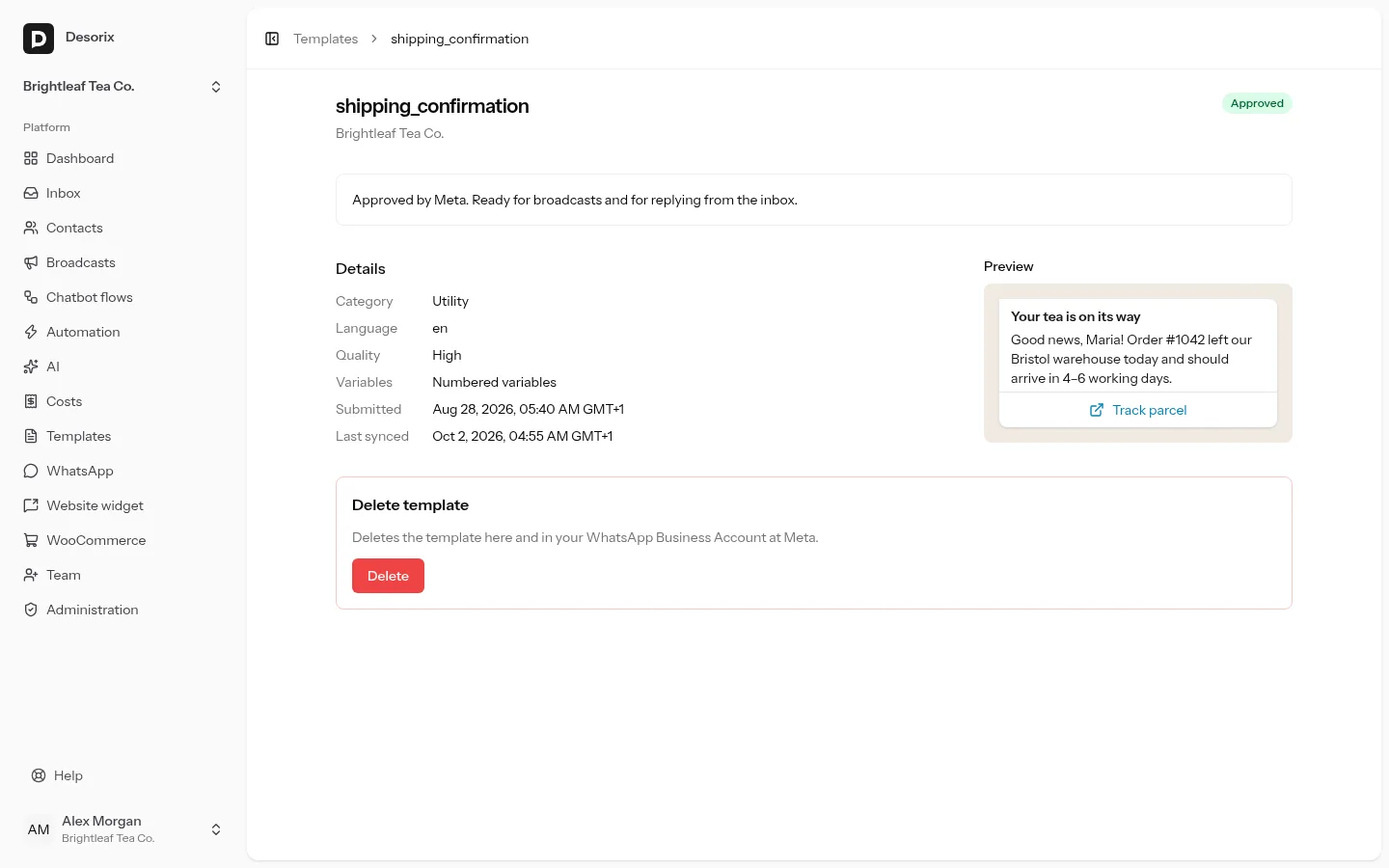
WhatsApp only lets you start a conversation, or write after 24 hours of silence, with a template Meta has approved.
Templates → Sync from Meta loads the templates your WhatsApp Business Account already has.
New template:
- Name: lowercase letters, numbers and underscores.
- Language: 71 of Meta's template languages. Templates you already have in other languages still sync and send.
- Category: marketing for promotions, utility for updates about an order or account. Meta charges by category and may change it.
- Header: optional; text, or an image, video or PDF with a sample file.
- Body: variables written as
{{1}},{{2}}, …, numbered from 1, each with an example value. Meta refuses a body that starts or ends with a variable (punctuation such as{{1}}.doesn't count as text) or has two variables side by side; the builder warns you as you type. Codes and one-time passwords belong in the Authentication category, which Desorix doesn't create yet. - Footer: optional.
- Buttons: quick replies, up to 2 website buttons (one may end in
{{1}}), and 1 call button.
A live preview shows how it will look.
Save draft, or Save and submit to Meta. Approval usually takes minutes. The status updates by itself when Meta decides: Approved, Rejected (with the reason in plain words and what to change; click Edit, fix it and resubmit the same template), Paused or Disabled (quality problems).
Delete removes the template from Meta too. Meta doesn't allow reusing the same name for 30 days.
Approved templates appear in the inbox's Template button and in broadcasts.
Broadcasts (owners and admins; viewers see results)
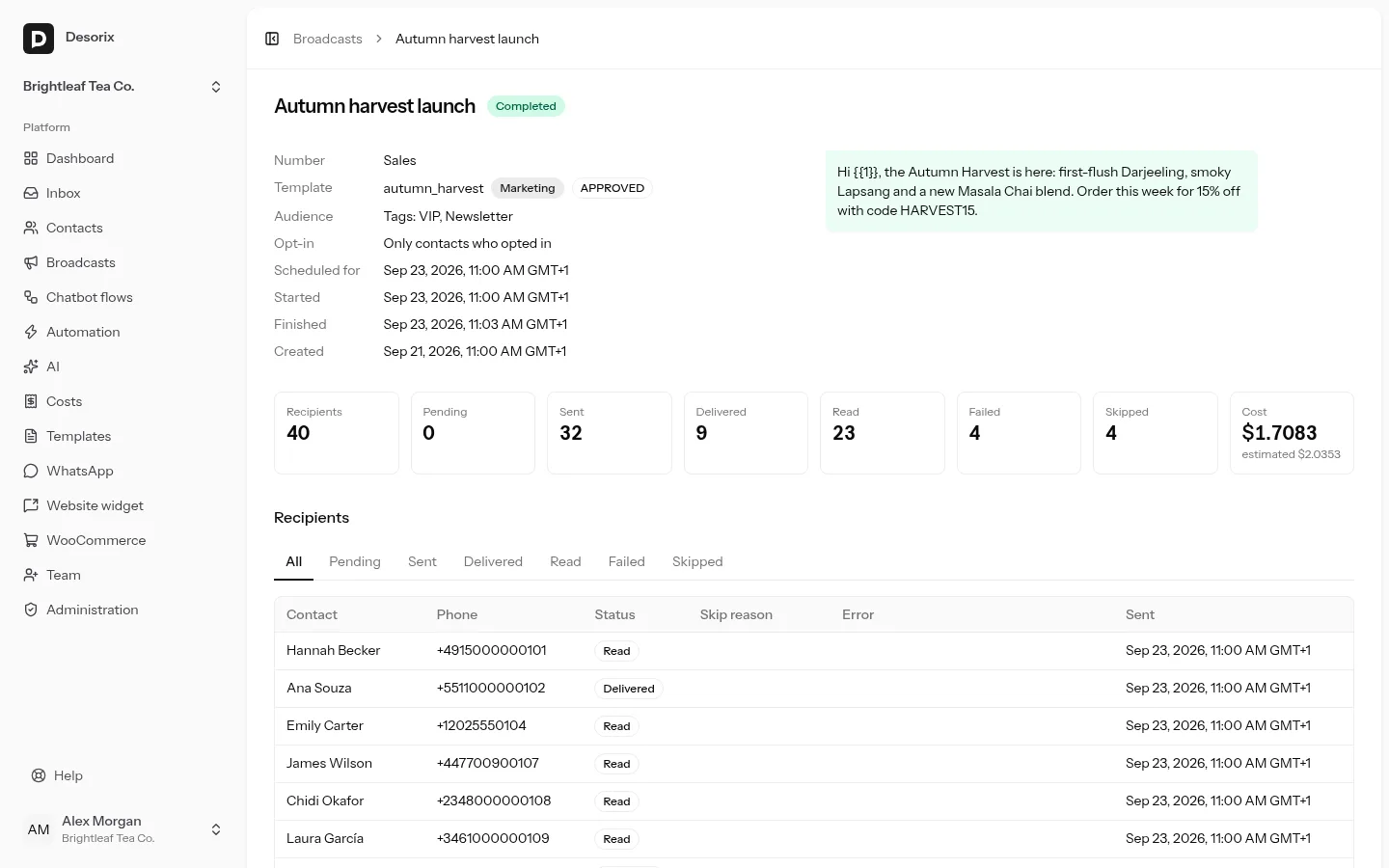
A broadcast sends one approved template to many contacts.
New broadcast: name, sending number, template, and audience (everyone, a segment, or contacts with certain tags).
Only contacts who opted in is on by default. Opted-out contacts are always skipped, whatever you choose.
Variables: for each
{{n}}, use fixed text, the contact's name, their phone number or a custom field. Contact-based values need a fallback for contacts without that data. Templates with an image/video/PDF header ask for the file.Send test to me: sends the message to a number you choose, with the fallbacks as sample values, so you can check it on your own phone first. Meta charges the test like any message.
Send now or Schedule… opens the confirmation. You must confirm it before anything is sent or scheduled. It shows:
- how many people will receive it, after skipping opted-out people, those without opt-in, and duplicates;
- the template's category;
- the estimated cost in your currency, with a per-country breakdown.
If the audience changes before you confirm, Desorix asks you to review it again.
While sending, the page shows progress, delivered/read counts, failures with Meta's reason, and the actual cost. You can Pause, Resume or Cancel.
Good to know:
- Speed: on shared hosting, messages go out in batches every minute, a few per second. On a VPS with a queue worker it's faster, up to the number's messages-per-second setting (WhatsApp → number → Settings).
- Messaging limit: Meta limits how many new people your business can message per 24 hours (250, 2,000, 10,000…). The confirmation warns you when a broadcast is bigger than what's left today; the rest is skipped.
- Quality pause: if Meta rates the number's quality as low, the broadcast pauses by itself.
- Inbox: conversations started by a broadcast stay out of your Open inbox until the customer replies.
Chatbot flows and automation (owners and admins)
Chatbot flows are automated conversations drawn on a canvas: messages, questions with buttons or lists, conditions, tags, assignment, a handoff to your team, webhook calls and waits. Automation holds the rules that start them: a keyword, the first message from a contact (welcome), or a message outside business hours (away). A rule can also simply reply with a message.
- Chatbot flows → New flow: start from the example menu or a blank flow.
- Build it: select a step and add the next one from the left, or drag from a step's dot to another step to connect them. The draft saves automatically.
- Test flow runs it in a chat preview with clickable buttons. Nothing is sent to WhatsApp.
- Publish, then tick Active. People already in a flow finish the version they started.
- Automation → New rule to decide when it starts. Set Business hours on the same page for away messages.
The bot stays quiet in a conversation once an agent replies (24 hours by default) and after a handoff. Agents see the bot's state in the inbox's Chatbot section, where they can start a published flow, stop it, or resume a paused bot. Messages the bot sends are costed like any other message.
The full guide, with every step type, placeholders, the webhook step and the 24-hour rule, is in Automation and chatbot flows.
AI assistant (owners and admins set it up)
AI in the sidebar sets up the assistant:
- Add an API key (Anthropic or OpenAI), or use the platform's key if your provider offers one. Click Test.
- Describe the business under About your business, and add FAQs or price lists under Documents.
- Leave Drafts for agents on. Agents get a Draft reply button in the inbox and edit each draft before sending.
- Optionally switch on Auto-reply. The AI then answers when no automation rule or flow did, and hands the conversation to the team when it isn't sure.
- Set a Monthly spend limit, and check Try it before going live.
Details, models and prices: AI assistant and providers.
Costs (owners, admins and viewers)
Costs shows the month's WhatsApp and AI spend:
- confirmed and estimated amounts, and a month-end forecast;
- auto-reply cost per reply (AI plus the WhatsApp message);
- breakdowns by category, number, agent, broadcast, flow and rule.
Owners and admins can add cost alerts, emailed at most once a month. See Costs.
Language and appearance
Settings → Appearance: light, dark or system theme, and the interface language (English or Arabic, with a right-to-left layout for Arabic). The login screen also has a language picker.