
Appearance
WooCommerce order notifications
Send customers a WhatsApp message when their order is received, shipped, completed or cancelled. Each order status has its own approved utility template. Messages are sent from one of your WhatsApp numbers, appear in the inbox as "WooCommerce order 1042", and are costed like every other message.
WooCommerce is a module that ships with Desorix. An administrator can switch it off under Administration → Modules. Owners and admins of a workspace set it up. Agents only see the resulting conversations.
What you need
A connected WhatsApp number (WhatsApp setup).
At least one approved Utility template for order updates, for example:
Hi
{{1}}, your order{{2}}is now{{3}}. Total:{{4}}. Thank you for shopping with us!Create an order-update template explains every field in Meta and Desorix. Templates with an image, video or document header can't be used for order notifications.
WordPress admin access to your WooCommerce shop.
Customer consent. Meta requires customers to agree to WhatsApp messages. Add a checkbox to your checkout, for example with a checkout-fields plugin, such as "Send me order updates on WhatsApp".
1. Connect the store in Desorix
Sidebar → WooCommerce → Connect a store.
Enter the store name and address, and choose the WhatsApp number that sends the messages.
Country for phone numbers without a country code: customers often type local numbers at checkout (
0712 345678). Desorix reads them with the billing country, or this country when the order has none.Who receives notifications:
- Only customers already opted in: the safest choice. Customers who opted in some other way (a WhatsApp conversation, a CSV import with consent, a STOP/START keyword) get messages.
- Every customer who places an order: choose this only if your checkout asks for WhatsApp consent. You must confirm it. Each customer is then recorded as opted in, with the order number as the source.
Customers who opted out never receive messages, whichever option you choose.
2. Add the webhooks in WooCommerce
In WordPress: WooCommerce → Settings → Advanced → Webhooks → Add webhook. Create two webhooks:
| Field | Webhook 1 | Webhook 2 |
|---|---|---|
| Name | Desorix new orders | Desorix order updates |
| Status | Active | Active |
| Topic | Order created | Order updated |
| Delivery URL | Copy from Desorix | the same |
| Secret | Copy from Desorix | the same |
| API version | WP REST API Integration v3 | WP REST API Integration v3 |
When you save, WooCommerce sends a test ping. Desorix then shows Connected: last webhook ….
3. Choose a template per order status
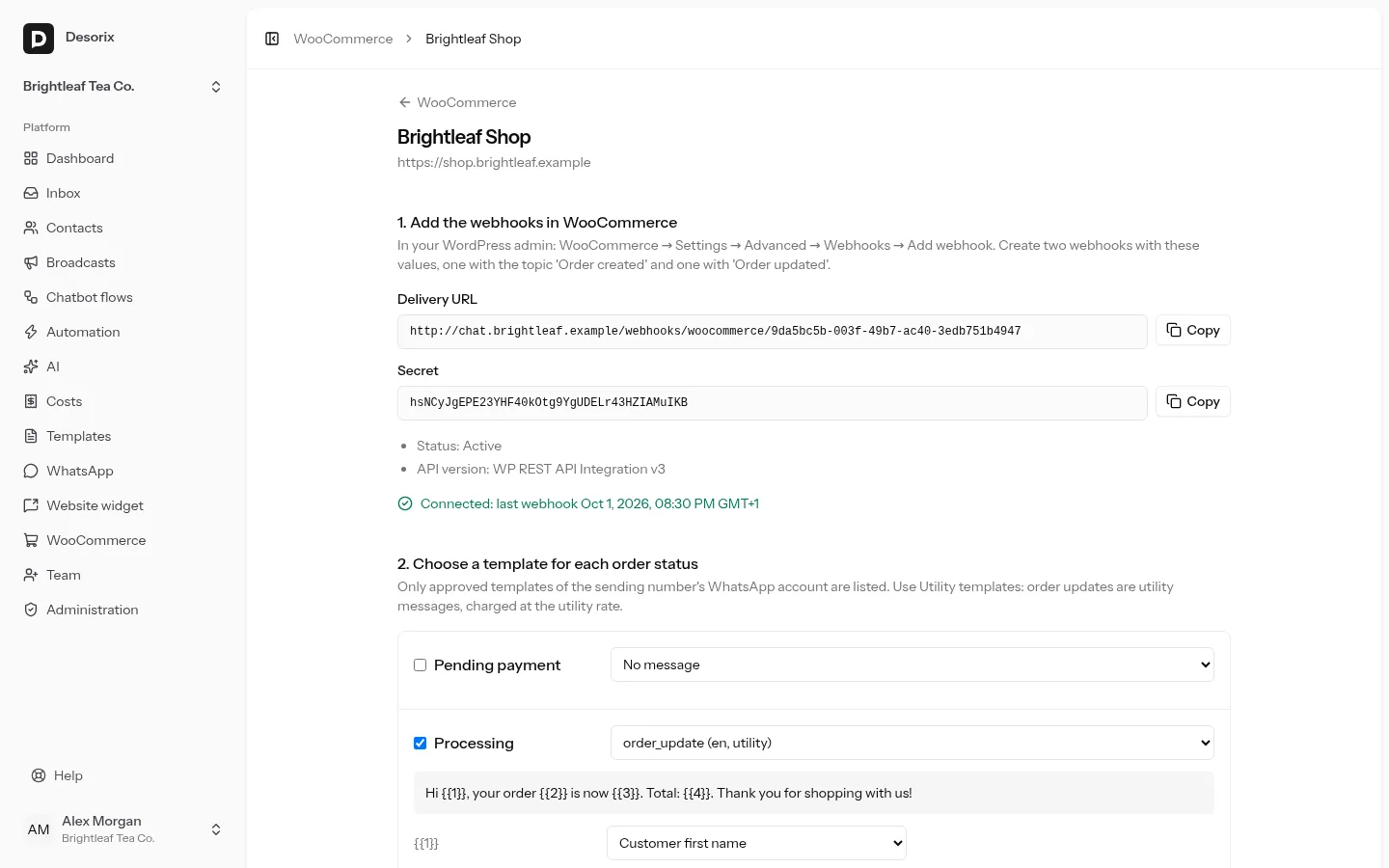
For each status you want to notify (Processing, Completed, Cancelled, …):
- Tick it and choose a template.
- Map each template variable to an order detail:
- customer first name or full name
- order number or total (with currency)
- status
- items ordered
- payment method or shipping method
- order ID or order key (for link buttons)
- store name
- fixed text
- Save notifications, then Send test to your own phone. The test uses a sample order and is a real, charged message.
How it behaves
- At most one message per order and status. WooCommerce retries webhooks and sends "order updated" for every change. A unique database record makes sure each status is sent only once.
- Recent orders lists every order event with its result: sent, no notification for this status, no phone number, customer not opted in, customer opted out, or failed (with Meta's reason).
- Costs: order updates are utility messages, recorded with category, destination country and cost like every other message. They appear on the Costs page.
- Security: every webhook must carry WooCommerce's signature (
X-WC-Webhook-Signature), made with the store's secret. Unsigned or wrongly signed requests are refused. New secret replaces the secret. Then update both webhooks in WooCommerce. - Pausing: untick Send notifications in the store settings. Webhooks are still accepted, so WooCommerce doesn't disable them, but nothing is sent.
Troubleshooting
- "Waiting for the first webhook": check the webhooks are Active and the Delivery URL is exact. WooCommerce → Status → Logs (source
webhooks-delivery) shows each delivery. - WooCommerce disabled a webhook: WooCommerce disables a webhook after repeated failures. Re-enable it after fixing the cause. Desorix answers 200 to everything it accepts, even orders it doesn't act on.
- "No phone number on the order": make the billing phone field required at checkout.
- "Customer not opted in": the store uses Only customers already opted in. See step 1.4.